Nobody can deny that games keep getting better prettier every day. But we
also cannot forget the great classics from the past.
Can you even count how many hours you have already spent with Zelda? Donkey Kong? Street Fighter? Crash? Metroid? If we include the Mario saga, there is no way to count...
What motivated me to do this project was my contact with Raspberry Pi and how easy it was to configure it and turn it into a complete emulation center, with many consoles available.
I am writing this post because many people asked me to share more details about how I built my "videogame". Haha
So, let us go!
Result
What we will be able to do, if we follow this post step by step, is this:
First steps
What do we need?
Unlike conventional consoles, our videogame will be assembled piece by piece, until it becomes a single device. There are complete kits online, but I preferred to buy each item separately. The list is not big and not expensive:
| Component | Price |
|---|---|
| Total | 456.98 |
| Raspberry Pi 3 | 279.79 |
| 5V 2.2A power supply | 34.80 |
| 64 GB micro SD card | 92.39 |
| DualShock controller (2x) | 50.00 |
| HDMI cable | 0.00 |
| USB keyboard | 0.00 |
Notice that I chose Raspberry Pi 3 because it was the newest one with better specs, but nothing stops you from doing this with an earlier version.
We are going to use Recalbox as our platform. It is open source and easy to configure. For adventurous people there are other options, like RetroPie and Lakka, for example.
Preparing the ground
With all parts in hand, the next step is formatting the micro SD card to FAT32. Recalbox recommends using SD Formatter on Windows or macOS, and gparted on Linux.
While you do that, start downloading Recalbox. Choose the latest version in its GitHub releases page.
After the download, you should have a file called recalboxOS.zip and a formatted card. Extract the files and copy them to the card.
1, 2, 3 testing...
Now that you have your videogame "hard drive", let us connect all parts to your Raspberry.
- Insert the micro SD
- Connect the HDMI cable to it and then to a monitor/TV
- Plug in a keyboard
- Connect the power supply
For a few moments, it will run some setup and then reboot.
And... voila!
Simple, right?
Configuring controllers
You can configure many controller types for Recalbox. I chose the classic DualShock.
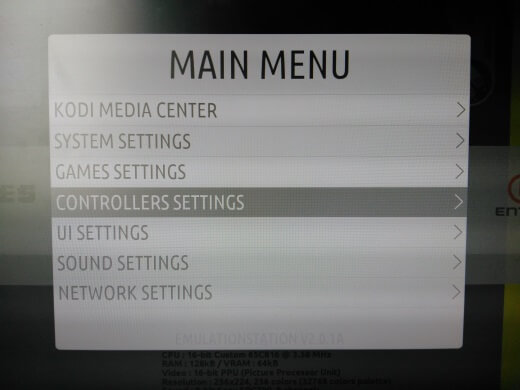
Use the keyboard to access settings. Press Enter to open the menu, A to select, and S to go back.
This step is simple: press the controller button requested on screen, as in the image below.
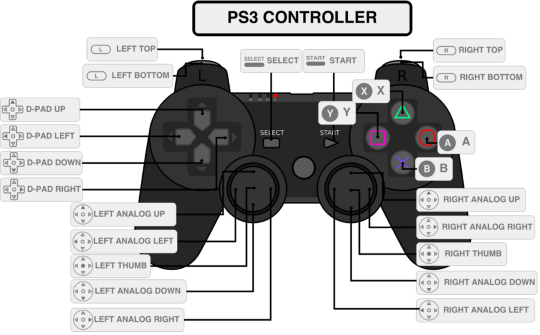
An important detail is the last button requested: HOTKEY. With it you can access many important platform commands.
| Command | Function |
|---|---|
| Hotkey + Y | Load state |
| Hotkey + X | Save state |
| Hotkey + ↑ | Select save slot -1 |
| Hotkey + ↓ | Select save slot +1 |
| Hotkey + Start | Return to game list |
| Hotkey + A | Reset game |
| Hotkey + B | Open emulation menu |
| Hotkey + L1 | Screenshot |
| Hotkey + → | Increase speed |
| Hotkey + ← | Decrease speed |
| Hotkey + R2 | Change image filter (next) |
| Hotkey + L2 | Change image filter (previous) |
Connecting to the network
Still with the keyboard connected, go to settings and configure internet access (Raspberry Pi 3 has built-in Wi-Fi and Bluetooth).
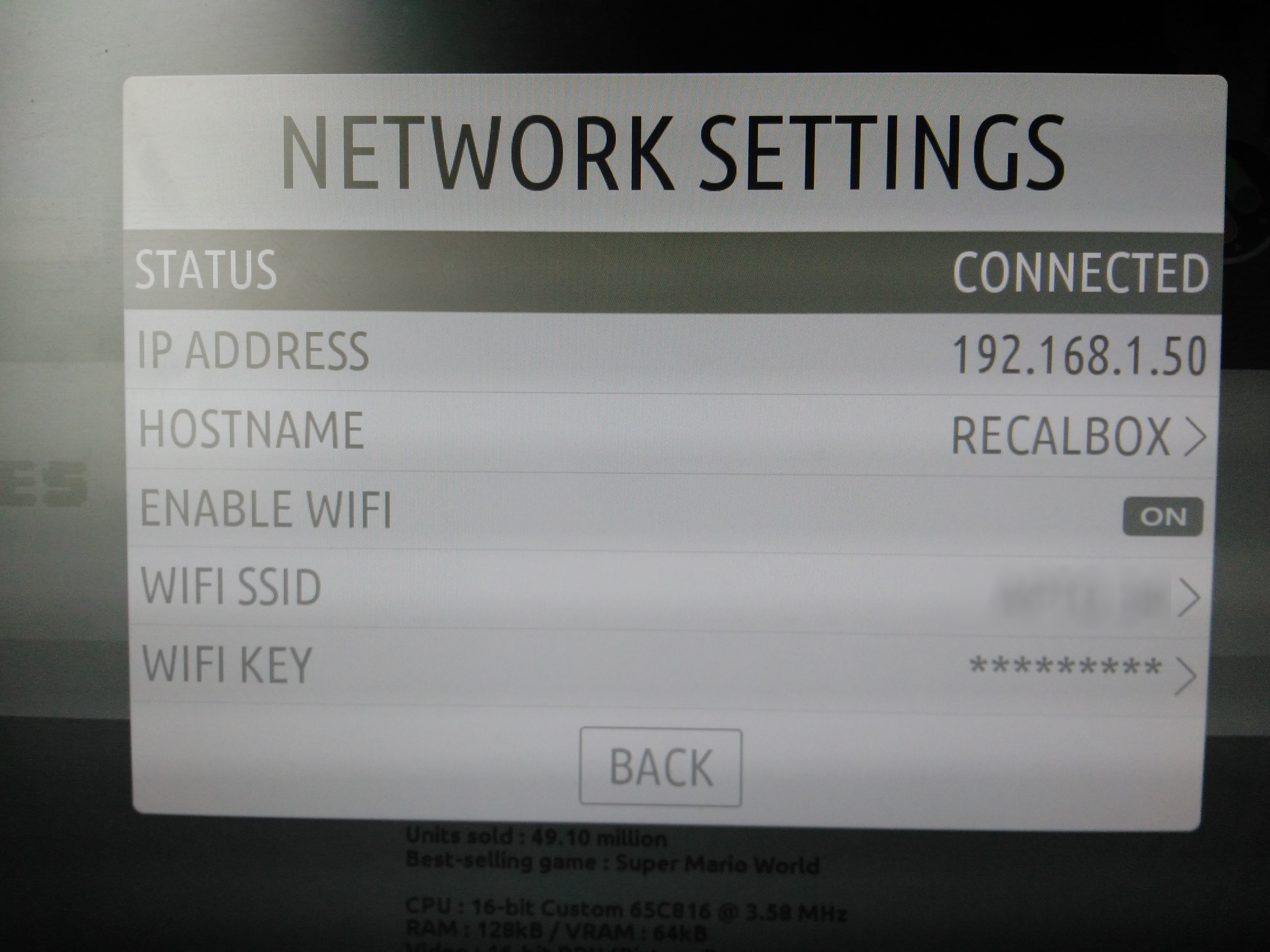
If you have an ethernet cable, plug it in and skip this step. If you prefer Wi-Fi, as I did, fill in the required fields:
- WIFI SSID: your network name
- WIFI KEY: your password
Wait until connection is established and note the IP ADDRESS. This step is very important.
Adding games
You can do this in a few ways, as long as your computer is on the same network.
Accessing the SD card directly
Through Run dialog or Explorer, type \\recalbox and press Enter.
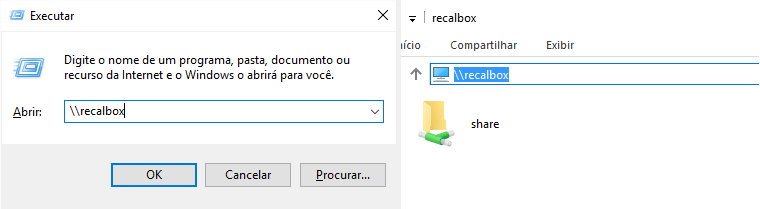
Navigate to \\recalbox\share\roms and you will see all folders. Then just
copy and paste each ROM into its corresponding folder.
Via browser
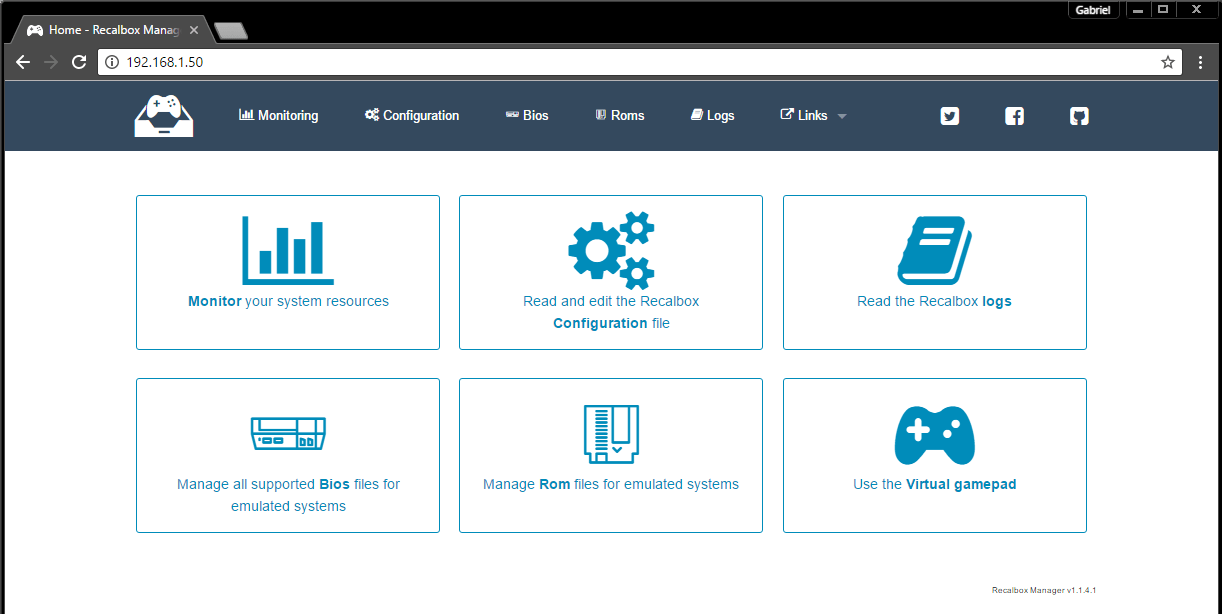
Remember the IP ADDRESS? Type it in your preferred browser. You can access many settings from that interface: monitor temperature, add/remove BIOS files, read docs, and also upload/remove ROMs.
Fetching game images
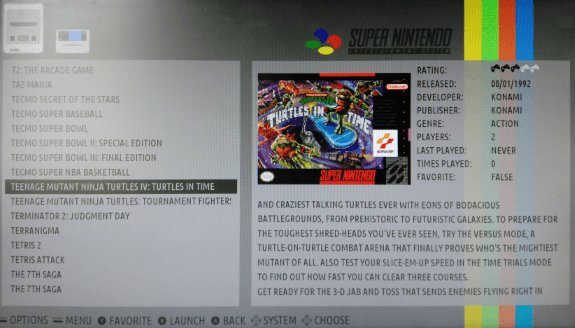
After adding games, you can fetch cover images and metadata. Go back to the main menu and choose SCRAPER. Follow the instructions and then check how your games look (this step may take a while).
Case
Your videogame is almost ready, but instead of leaving a bare board connected directly to the TV, I bought a case for Raspberry. Since it had not arrived yet (I bought it from China), I made a temporary cardboard one using a template I found online.
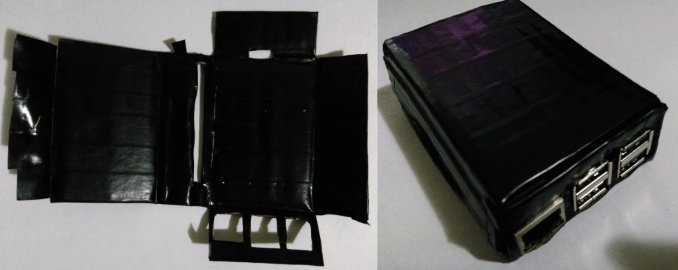
It is not the prettiest, but as I said, it is temporary until the real case arrives.
Next steps
When the case arrives, I plan to add a power button, reset (maybe), and an LED to indicate whether it is on.
And that is it!
I hope you enjoy it and share photos of your own videogame if you build one. Mine is already done!
Thanks! ;)